5 MCP workflows that give coding agents useful context
Choose MCP tools by the missing information in a task, and give each connection a clear access boundary.
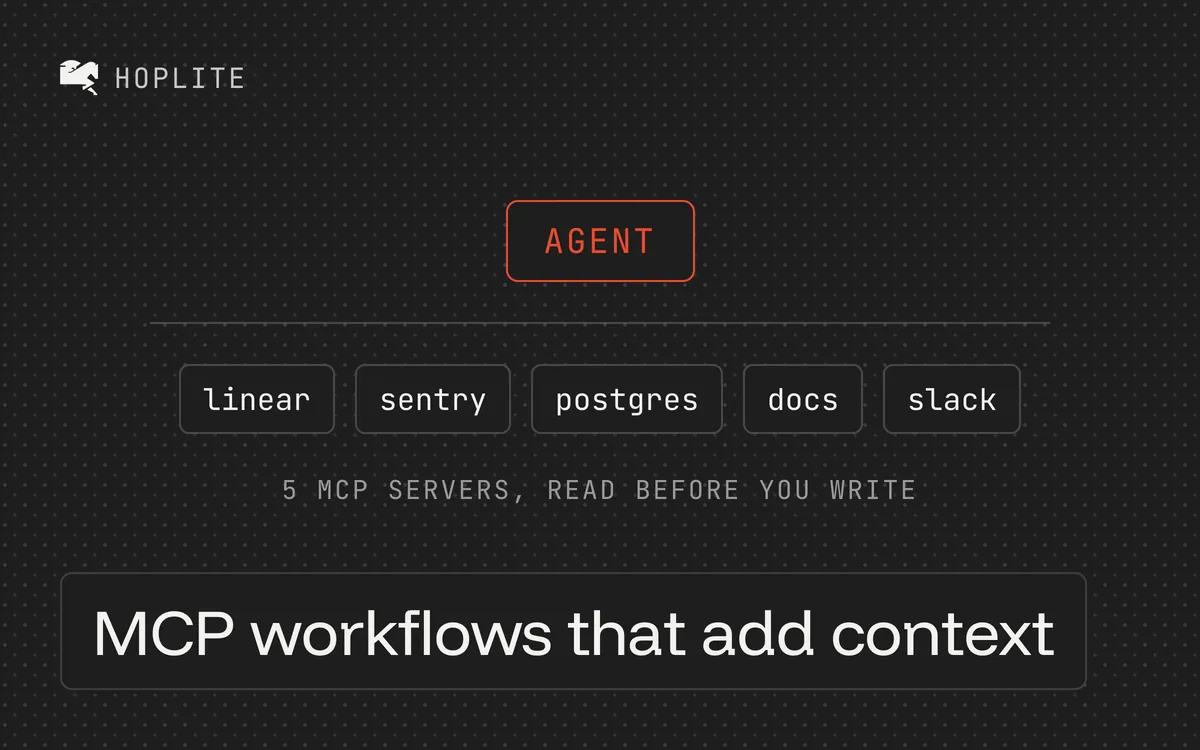
An agent can read your whole repository in seconds. The fact it needs is usually somewhere else. An agent debugging a failed request may have every source file and still lack the actual error response. Another agent can see the code that implements an API but not the requirement that changed last week.
MCP servers let a coding agent call additional tools during a task. The useful starting point is the missing information. Connecting every server you can find makes that question harder to answer.
Connect only what the task needs
Decide where the server runs before deciding what it can do. A server that runs beside the agent can reach the agent's own files and local services; a remote server can only see what you send it. Give each connection its own credential, scoped to the one system it needs, and verify a single read operation before assigning broader work.
If you don't want to host tool servers, Hoplite runs a project's MCP servers inside the task's sandbox.
The workflows below describe useful jobs for tools. They aren't a claim that every vendor's server behaves the same way. Check the chosen server's tools and permissions before you rely on it.
1. Read documentation for the version in the repository
Use a documentation search server when the task depends on an API that has changed between releases. Ask the agent to inspect the installed version first and retrieve the corresponding documentation.
A useful prompt is: "Check the package version in the lockfile, read the documentation for that version, and explain the supported configuration before editing. Cite the page you used."
Review whether the returned documentation matches the dependency. A current example can still be the wrong example for an application two major versions behind.
2. Investigate an observed error
Connect an error-inspection tool with access limited to the relevant application. Ask for a particular event or issue and a summary of the evidence supporting the suspected cause. If your platform already has a native error-tracker integration, check whether it covers the task before adding a second connection.
Keep access to the error-tracking system read-only for the first run. Give the agent permission to reproduce locally with sanitized data, and have it report findings before editing. An exception name is a starting point for investigation, not permission to resolve the incident.
3. Read the requirement attached to a task
Issue tools help when a change depends on acceptance criteria or a discussion outside the repository. Ask the agent to read the named issue and identify any conflicting requirements before implementation.
An issue link attached to a task is usually metadata. Reading or changing the tracker still needs an explicit request and a credential that allows it.
Limit the request to the relevant issue at first. A search through an entire workspace usually needs more direction than "find the context."
4. Inspect application behavior
Browser tools can help an agent reproduce a UI failure and inspect the resulting page. If the agent's environment already includes a browser and a running build of the app, add another server only for a capability beyond those.
Provide a test account and a development environment. Describe the exact interaction to check, such as changing a filter while a customer remains selected. Ask the agent to record what it observed and distinguish that from what it inferred from source code. Avoid granting access to a live administrative session just to investigate a layout bug.
5. Inspect development data
A database inspection server can answer questions about schema or development fixtures. Use a scoped, preferably read-only credential and an environment intended for this work. If the server must run next to the agent to reach its dependencies, run it there rather than exposing an internal host to a remote URL.
Ask for a narrow query and require the result to exclude secrets and personal data. If the task eventually needs a migration, review that as a separate change with its own verification.
Check imported credentials
When you import server definitions from another tool, check whether credentials came with them. A token copied from a personal setup keeps whatever access it had there, which is often broader than the task needs. Treat credential import as its own step and inspect the access before approving it.
Choose one task currently blocked by missing information. Connect the smallest useful tool set, verify its read access, and run the task. Keep the connection if it contributes evidence you can see in the result.